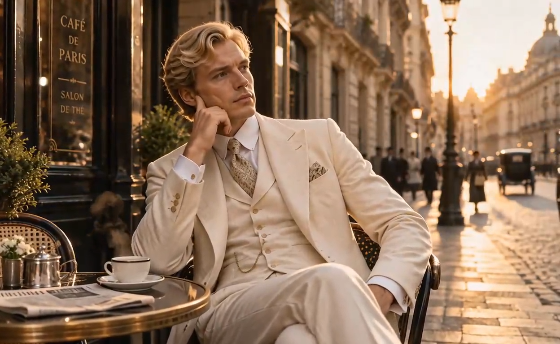
Craft Lyric Visualizers in Minutes with AI Video Generator
A lyric visualizer is an all-in-one visual
system that uses typography, imagery, rhythm, colour, lighting, and movement.
Each choice should enhance the song's emotional direction and not detract from
the words. AI video generator can speed up the creation of scenes while
ensuring creative control is yours. Lyrics convey meaning; rhythm dictates when
visual elements come, go, move, or change. The typography must be legible, and
the size, weight, positioning, and movement of typography highlight significant
phrases. Subjects, environments, textures, symbols, and repeated patterns can
be used to reinforce the themes in imagery.
Divide the Lyrics into Visual Moments
Break the song down into discrete meaningful
parts prior to creating footage, graphics or transitions. Know the beginning,
verses, pre-chorus, chorus, bridge, final chorus, and outro. The opening can
set the visual world, and verses can add in imagery, themes, characters, or
settings. Pre-chorus can add tension by tighter framing, greater contrast,
faster movement, or light changes. The chorus can be extended in scale by
having a broader texture, more lively movement, or larger typography. The final
chorus can take up some repeated elements from the previous one(s) and add
elements that indicate progress. The outro can be a fade to less active,
brighter, or sparser visuals so that the story can settle. Not all lyrics
require a new scene, as repetition of visual language creates continuity.
Translate Musical Mood into AI Video
Directions
Good prompts tell about what you see, not
words like beautiful or cool. Specify lighting by using soft dawn light, neon
reflections, hard shadows, or dim interiors. Set up environments using
architecture, weather, landscape, materials, and/or atmosphere. Use slow
tracking, drifting fabric, falling rain, rotating objects, or movement that is
restrained to describe movement. Indicate camera angles using close-up,
overhead, wide, low, or eye level. Use wet pavement, rough concrete, shiny
metal, glass, or soft fabric to add texture. Explain how the behaviour of the
subject is described when people, animals or things have narrative
significance. Longer shots can be used in reflective parts – Editing rhythm can
use longer shots during reflective parts and quicker changes during intense
parts. Pippit AI video generator
allows for detailed video prompting and reference media to guide generated
sequences.
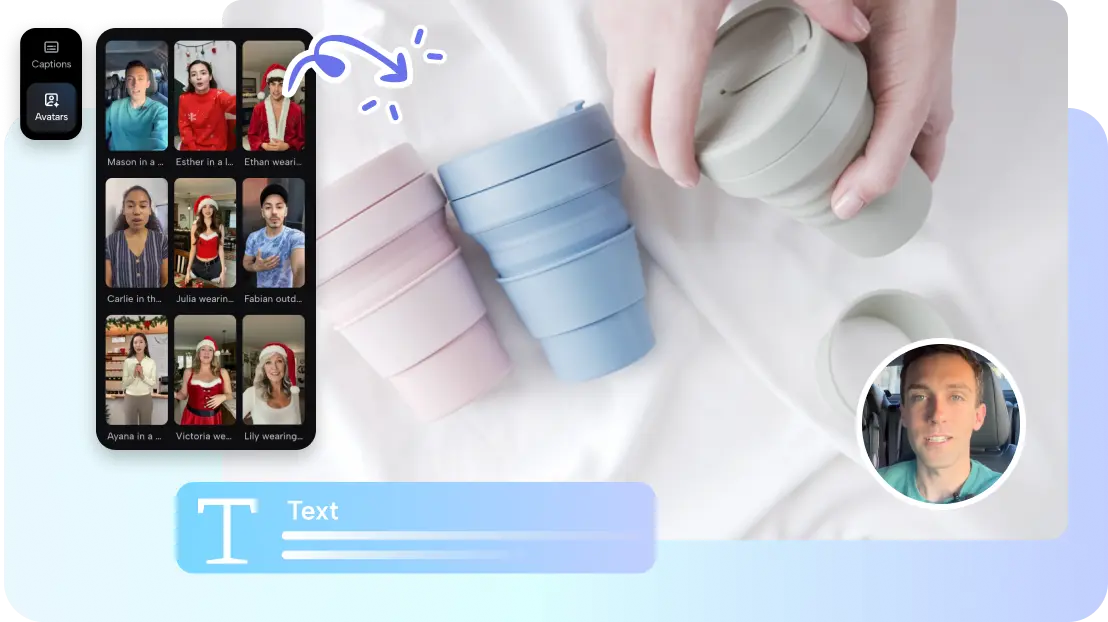
Steps to Craft Lyric Visualizers in Minutes
with an AI Video Generator
Pippit is capable of creating lyric
visualizers in minutes. You can also use
Seeworld to
describe a conceptual visual environment, while generated scenes should match
the song's identity.

Follow these steps to build the first
sequence:
Step 1: Prepare your lyric visualizer
1.
Log in
to Pippit using Google or social media credentials before creating your lyric
visualizer.
2.
Open
the "Video generator" from
the left menu under "More"
to start building your visualizer.
Step 2: Create visuals around your lyrics
1.
Select
an AI model, including Dreamina Seedance 2.5 or Dreamina Seedance 2.0, for
lyric visuals.
2.
Choose
Dreamina Seedance 2.0 Fast, Dreamina Seedance 2.0 Mini, or Dreamina Seedance
1.0 for visuals.
3.
Alternatively,
choose "Auto Route" to
smartly route across video generation modes for better overall value.
4.
Enter a
detailed prompt describing lyrics, musical mood, visual themes, timing, motion,
transitions, and atmosphere.
5.
Click "+" to upload reference
images or videos from your device, phone, Dropbox, or link directly.
6.
Select
assets instead when supporting visuals are needed but suitable reference media
remains unavailable currently.
7.
Use "@" to tag relevant media or
photos directly within your prompt for precise visual referencing.
8.
Choose
a suitable aspect ratio through "Ratio",
then select your preferred output quality under "Resolution".
9.
Confirm
your settings, then click "Generate"
to create the lyric visualizer video for preview now.
Step 3: Sync, edit, and export your
visualizer
1.
Preview
the generated visualizer and check whether motion, timing, imagery, and lyrics
feel synchronized.
2.
Click "Regenerate" whenever the
result needs better timing, stronger visuals, or improved musical alignment
overall.
3.
Select "Edit more" to refine your
video using Pippit's available AI editing tools afterward.
4.
Customize
captions manually, add text, and adjust size, color, alignment, filters, and
effects throughout scenes.
5.
Add
background music, remove backgrounds, and fine-tune visuals to complement your
song's overall mood.
6.
Click "Download" to export the
completed lyric visualizer directly onto your local device for sharing.
7.
To post
directly on social media, click "Publish"
to schedule and share across connected channels.
Synchronize Lyrics with Visual Pacing and
Typography
Use typography as a dynamic graphic element
rather than a static caption layer. Correlate text changes with significant
lyrical phrases, particularly those with emotional or narrative significance.
More forceful words can be given greater size, varying motion, position, or
emphasis. Use typography to create contrast, spacing, positioning and
controlled clutter to ensure readability against a moving background. Correct
AI-generated captions, as AI transcription may result in certain errors in
spelling, punctuation, timing, or wording. Pippit offers manual caption
editing, making corrections feasible prior to final export. Note the timing of
each lyric to the music rather than relying on the visuals alone.
Create a Visual Motif Instead of Random
Scenes
Patterns can be repeated in visual elements
to give the impression of being conceived as separate clips within one overall
idea. Mirrors may symbolize self-reflection, and roads may symbolize movement,
distance, uncertainty, or change. Water may reflect emotional changes through
reflections, waves, rain, submerged imagery, or changing surfaces. Light and
shadow can convey contrast without having to be literally explained.
Transformation between scenes can be a change in weather. Objects can be
repeated to link different scenes, for example, pictures, necklaces, flowers,
windows, or vehicles. Select a few motifs and repeat them strategically
throughout key areas. Relationships that are generated separately in Pippit can
be maintained recognisably using related prompts.
Refine the Final Lyric Visualizer in Pippit
Post-generation refinement – whether the
visualizer is able to articulate the song clearly is determined
post-generation. Check all lyrics for visuals, timing, background, and
typography prior to export. Correct captions where generated words don't match
approved lyrics, particularly with names or repeated phrases. Change text
alignment, size, color, position, text effects, text filters, and background
treatment when text becomes difficult to read. Sizes and framing should be
appropriate to the aspect ratio and platform chosen. Be aware and careful with
the transitions, as sudden changes can make the continuity of good scenes
weaker. Recreate parts that are distracting in terms of subject, detail,
movement, or symbolism. Look at the whole song, as individual pieces may sound
good, but in isolation the song might not work.
The effective lyric visualizer employs typography, imagery, rhythm, mood, and continuity as one language. Every scene must be related to the theme of the song, include discernible words, and have a deliberate tempo. Begin by talking about the structure of the song, identify repeated motifs, include concrete prompts, and carefully craft each section of the song. The best one has lyrics with a visual identity that changes as the music changes.