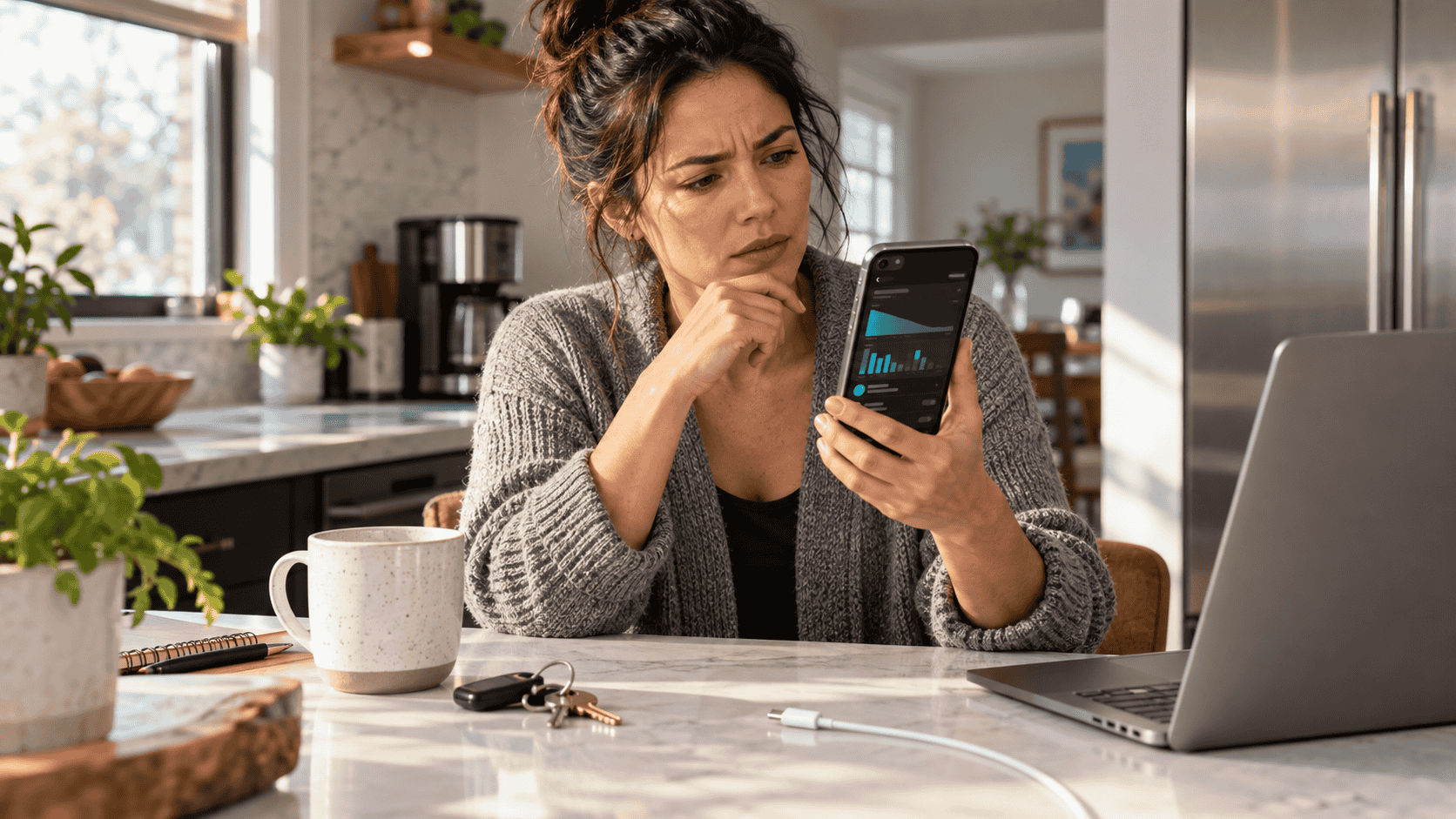
You updated your iPhone, unplugged it in the morning and suddenly the battery seems to fall much faster than it did last week. The phone may even feel warmer in your hand. Before assuming iOS 27 ruined your battery—or rushing to replace it—Apple says there is one important thing to know: the phone may still be finishing the update long after the progress bar disappeared.
Yes, Battery Drain After a Major Update Can Be Temporary
Apple says that after installing a software update, some update-related work continues in the background even though you can immediately use the iPhone.
That activity can temporarily affect both battery life and thermal performance.
Apple's current support guidance specifically tells users who notice worse battery life after an update to wait a few days and check again.
That is a much more useful answer than immediately changing ten settings.
Your phone may simply still be busy.
The Update Is Finished. The Setup May Not Be.
Installing iOS is only one part of the process.
Afterward, the phone may still need to complete background tasks such as organizing data, updating system information, syncing content and preparing features for the new operating system.
Apple now exposes some of this directly in Battery settings.
You may see an Insight labeled:
“Ongoing iOS Update”
or:
“Ongoing Device Setup.”
Those messages indicate that background work is still affecting battery life or heat.
That is a strong reason to wait before diagnosing a permanent problem.
iOS 27 Makes This Especially Relevant
iOS 27 is a major software release rather than a tiny maintenance update.
Apple released it on September 14, 2026, alongside other major platform updates and new Apple Intelligence capabilities.
Major updates can require more post-installation work than small security fixes.
So if your battery behavior changed immediately after installing iOS 27, timing matters.
A phone that was normal before the update and noticeably busier immediately afterward may simply be completing system tasks.
How Long Should You Wait?
Apple's current advice is simple:
wait a few days.
It does not promise that every battery issue will disappear after an exact number of hours.
Phones contain different amounts of data.
People use different apps.
Some devices have enormous photo libraries.
Others have years of messages, files and app data.
The sensible approach is therefore to monitor the phone for several days instead of judging battery life from the first afternoon after installation.
Do Not Judge Battery Life While You Are Testing Every New Feature
There is another reason update day can produce misleading results.
People use their phones differently after a major release.
You may spend hours:
exploring new features;
changing settings;
downloading apps;
testing Siri;
editing photos;
watching videos about the update;
or repeatedly waking the screen.
That is not normal daily use.
If your screen time doubles because you are exploring iOS 27, battery consumption should also rise.
Before blaming the software, compare similar days.
Open Settings → Battery Before Changing Anything
Apple has made the Battery screen much more useful for troubleshooting.
Open:
Settings
Battery
Then look at the Daily Usage chart and App and System Activity.
Apple says this area compares current battery use with recent usage and can identify which apps or system processes consumed the most power.
This can answer an important question:
Is iOS itself unusually busy—or is one app responsible?
That distinction matters.
Look for “Ongoing iOS Update” First
If that message appears, you already have an explanation for at least part of the unusual battery use.
The system is still finishing update-related work.
Give it time.
Keep the phone connected to Wi-Fi when practical.
Charge it normally.
Then check Battery settings again over the next few days.
Once the background process finishes, Apple says battery life should return toward normal.
If One App Is at the Top, Investigate the App
Suppose iOS 27 is not showing ongoing update activity.
Instead, one social-media, navigation, video or messaging app suddenly accounts for a huge share of battery consumption.
Tap it.
Apple's battery screen can show whether its energy use came mainly from:
on-screen activity;
background activity;
notifications;
or other factors.
That gives you a much better starting point than randomly disabling features across the entire phone.
Background Activity Can Explain a Lot
Some apps continue doing work even when they are not visible.
Examples include:
syncing photos;
fetching email;
playing audio;
uploading files;
providing navigation;
or refreshing content.
Apple identifies extended background activity as one reason an app may consume more battery than expected.
If one app suddenly shows unusually heavy background use after the update, first make sure the app itself is updated.
Developers frequently release compatibility updates around major iOS launches.
Check the App Store for Updates
Major operating-system releases can expose bugs or compatibility problems in individual apps.
Open the App Store and make sure your frequently used apps are current.
If one app remains unusually battery-hungry, check whether its developer has issued an update.
Do not assume every post-update battery problem is an Apple problem.
Sometimes iOS changes first and an app needs to catch up.
Low Cellular Signal Can Drain More Battery Than People Realize
Your battery screen may show another useful clue:
cellular coverage.
Apple says using the phone in a low-signal environment can increase battery consumption because the device must work harder to maintain connectivity.
This can create a misleading coincidence.
You install iOS 27.
Then you spend the following day:
inside an office with poor reception;
on a long trip;
in a basement;
or somewhere with weak cellular coverage.
Battery life is suddenly bad.
The update gets blamed.
But radio conditions may be part of the explanation.
Watch for “No Mobile Coverage and Low Signal”
Apple's battery Insights can identify situations where poor cellular coverage affected battery usage.
If that appears, the solution is not necessarily changing iOS settings.
The phone is spending energy trying to stay connected.
When reliable Wi-Fi is available, using it may reduce reliance on weak cellular service.
Apple also offers 5G Auto, which can switch between 5G and LTE when the faster network does not provide a meaningful advantage.
Your Screen Is Still One of the Biggest Power Users
It is easy to search for mysterious background causes while ignoring the large illuminated display in your hand.
High brightness consumes more energy.
Apple's current battery guidance can specifically recommend enabling Auto-Brightness when brightness settings are contributing to battery consumption.
After an update, check whether you have been using:
maximum brightness;
longer screen-on time;
Always-On display features;
or more visually demanding apps than usual.
Battery troubleshooting should start with evidence, not assumptions.
Notifications Can Add Up Too
Every notification can wake the device and trigger activity.
Apple's Battery screen can identify notification-related activity for individual apps.
One notification is insignificant.
Dozens of apps waking the device repeatedly throughout the day can become more meaningful.
If an app is constantly sending alerts you do not need, reducing those notifications can improve both battery life and your sanity.
Should You Immediately Turn Off Background App Refresh Everywhere?
Probably not.
Aggressively disabling every feature may improve battery life, but it can also make the phone less useful.
The better approach is targeted.
Look at Battery settings.
Identify apps with unusually high background activity.
Then decide whether that app genuinely needs to operate so often.
Troubleshooting should be surgical.
Not scorched earth.
Low Power Mode Is Useful While You Wait
If the phone is draining faster than usual while the update settles, Low Power Mode can help extend battery life.
Apple says Low Power Mode reduces or disables certain energy-consuming features and background activity.
To enable it:
Settings
Battery
Power Mode
Low Power Mode
It is especially useful when you need the phone to last until evening while background setup continues.
But Low Power Mode Does Not Diagnose the Problem
Think of Low Power Mode as a temporary tool.
It can reduce consumption.
It does not tell you why consumption increased.
If your phone still has terrible battery life a week later, you should investigate rather than simply leave Low Power Mode permanently enabled and assume that is normal.
Adaptive Power Is Another Option on Supported iPhones
Apple's Adaptive Power feature can automatically make small adjustments when the phone predicts unusually high battery use.
Depending on the situation, it can reduce screen brightness slightly, limit background activity and make performance adjustments.
It can also automatically activate Low Power Mode when the battery reaches 20%.
Apple says Adaptive Power is available on supported newer iPhones running iOS 26 or later.
On supported models, availability and default settings depend on the iPhone model.
Do Not Confuse Battery Life With Battery Health
These two phrases sound similar.
They describe different things.
Battery life means:
How long does the phone run between charges?
Battery health means:
How much capacity can the rechargeable battery still hold compared with when it was newer?
An update can temporarily reduce battery life without physically destroying battery health.
That distinction matters enormously.
Check Battery Health If the Problem Persists
Open:
Settings
Battery
Battery Health
Apple says newer iPhones can display information including battery capacity, cycle count and related battery-health information.
On older supported models, Battery Health & Charging provides the relevant status.
If the battery is heavily aged, an update may simply make an existing limitation more noticeable.
The software did not necessarily create the worn battery.
Rechargeable Batteries Do Not Stay New Forever
Lithium-ion batteries are consumable components.
Their maximum capacity gradually declines with chemical aging and charge cycles.
That means a three- or four-year-old phone may already have significantly less usable capacity than it had when new.
If battery life was already marginal before iOS 27, temporary post-update background activity may push it from:
“a little annoying”
to:
“why is my phone dying before dinner?”
The timing can make the update look like the entire cause when the battery was already aging.
If Battery Health Says “Service,” Pay Attention
Apple's support guidance says that if Battery Health shows a Service indication, battery replacement should be considered to restore capacity and performance.
That is very different from:
“I installed iOS yesterday and lost an extra 10% this afternoon.”
One suggests aging hardware.
The other may simply be temporary post-update activity.
What About the Phone Feeling Hot?
Some additional warmth after a major update can occur while the phone performs intensive background work.
Apple explicitly links ongoing update processes with temporary thermal effects as well as battery impact.
A slightly warm phone during setup is therefore not automatically alarming.
But there is a difference between:
warm;
and repeatedly becoming extremely hot during light use.
If excessive heat persists well after update-related activity has finished, investigate further.
Heat Itself Is Not Good for Batteries
Apple's charging guidance says iPhone may slow or temporarily stop charging when the device becomes too warm or too cold.
This protection is automatic and is designed to help preserve battery health.
Apple recommends charging in an ambient environment between 32°F and 95°F, or 0°C to 35°C.
Avoid leaving the phone:
on a sunny dashboard;
inside a hot parked car;
under a pillow while charging;
or in other environments where heat cannot escape easily.
Wireless Charging Can Add Heat
Wireless charging is convenient.
It can also generate more heat than a direct wired connection under some conditions.
That does not mean wireless charging is inherently harmful.
But if your phone is already warm from post-update processing and becomes even warmer while charging, removing a thick case or moving it to a cooler environment may help.
Apple specifically recommends removing the case if the iPhone tends to become hot while charging.
Do Not Start Force-Closing Every App
This is one of the oldest smartphone troubleshooting habits.
People repeatedly swipe away every app because they assume visible apps are constantly consuming power.
That is not a useful universal battery strategy.
Use Battery settings to see what is actually consuming energy.
If one app is malfunctioning, deal with that app.
Randomly closing everything can distract from the real cause.
Restarting the iPhone Is Still Reasonable
Although a restart will not magically restore an aging battery, it can clear temporary software problems.
If several days have passed, iOS update activity has finished and battery behavior still seems abnormal, restarting the phone is a reasonable troubleshooting step.
Afterward, monitor Battery settings again.
You want to see whether the abnormal usage pattern returns.
Make Sure You Are Running the Current Public Release
Major operating systems receive follow-up fixes.
Before spending hours changing settings, go to:
Settings
General
Software Update
and check whether a newer public update is available for your device.
Apple's security-release page confirms that iOS 27 launched on September 14, 2026.
Bug-fix releases can follow major launches, so keeping the phone current is an important troubleshooting step.
Do Not Install a Beta Just to Fix Battery Drain
If your daily iPhone has a battery problem, installing a developer or public beta is generally not the conservative troubleshooting choice.
Beta software exists for testing future releases.
It can contain its own bugs, battery problems and compatibility issues.
Use the latest stable public update unless you deliberately understand and accept beta-software risks.
Your everyday phone should not become a troubleshooting experiment.
One Day of Bad Battery Life Is Not a Scientific Test
Battery consumption changes dramatically from day to day.
Consider the difference between:
a quiet office day;
four hours of navigation;
taking hundreds of photos;
watching video on cellular data;
gaming;
using the camera heavily;
or sitting somewhere with poor reception.
If you want to know whether battery life truly changed after iOS 27, compare several similar days.
Apple's Daily Usage chart exists for precisely this kind of context.
Look at Screen-On Time, Not Just the Percentage
Suppose your battery reaches 30% by 6 p.m.
That sounds bad.
But yesterday you spent six hours actively using the screen.
Last week you used it for three.
The remaining percentage does not tell the complete story.
Battery life should always be interpreted alongside activity.
That is why Apple's Battery screen separates on-screen use and background activity.
A New Feature Can Quietly Change Your Habits
Major iOS updates can make people use their phones differently.
You might suddenly use:
Siri more often;
new photo tools;
new AI features;
more widgets;
additional notifications;
or other system capabilities.
Apple introduced major Siri AI and Apple Intelligence changes with the iOS 27 generation.
If your behavior changes, battery life can change with it.
Software efficiency cannot completely cancel additional usage.
When Should You Stop Blaming the Update?
If several days have passed and:
there is no longer an Ongoing iOS Update insight;
battery consumption remains dramatically worse;
one app is behaving abnormally;
the device repeatedly becomes very hot during light use;
Battery Health reports a problem;
or the battery percentage falls unusually fast while the phone is mostly idle,
it is time to investigate more deeply.
At that point, the explanation may be an app, a setting, network conditions, battery aging or a genuine software problem.
The Best Troubleshooting Order
Do not change twenty settings at once.
Start here:
Check Settings → Battery.
Look for Ongoing iOS Update or Ongoing Device Setup.
Wait a few days if those processes are still running.
Review which apps and system activities are using the most power.
Update apps.
Check cellular signal conditions.
Restart the iPhone.
Install the latest stable iOS update.
Check Battery Health.
Use Low Power Mode or Adaptive Power when helpful.
Then reassess.
Changing everything simultaneously makes it impossible to know what actually solved the problem.
Should You Replace the Battery?
Not simply because iOS 27 was installed.
Battery replacement makes much more sense when the battery itself is degraded.
Look at Battery Health.
Consider the age of the phone.
Think about whether battery life was already deteriorating before the update.
If the battery-health screen recommends service, replacement becomes a much stronger possibility.
But replacing a healthy battery because of two days of post-update background activity can waste money.
Should You Replace the Phone?
Usually, that question comes even later.
A battery is a replaceable component.
If the phone otherwise performs well, meets your needs and receives software support, poor battery endurance alone does not automatically require buying an entirely new device.
First identify whether the problem is:
temporary software activity;
an app;
network conditions;
or an aging battery.
Then choose the smallest solution that actually addresses the cause.
So Did iOS 27 Ruin Your Battery?
Probably not simply because battery life looks worse immediately after installation.
Apple itself says post-update background tasks can temporarily affect both battery life and temperature and recommends waiting a few days before evaluating the result.
That does not mean every complaint should be dismissed.
If the problem continues after update activity has finished, the Battery screen can help identify whether the culprit is an app, background activity, poor signal or an aging battery.
The smartest first question is not:
“How do I turn off everything in iOS 27?”
It is:
“What is actually using my battery?”
Your iPhone can now answer much of that question itself.
Check the evidence before changing the phone.
And especially before replacing it.
---------------------------------------------------------------
iPhone battery draining after iOS 27, iOS 27 battery drain, iPhone battery draining fast, iPhone battery after update, iPhone getting hot after iOS update, iPhone battery life iOS 27, iPhone battery health, Ongoing iOS Update battery, Adaptive Power iPhone, Low Power Mode iPhone, iPhone battery usage, iPhone battery replacement
Your Internet Is Fast. So Why Is the Wi-Fi Terrible in One Room?
Free VPNs Are Booming Again. What Are You Really Paying With?
AI Agents Are Now Breaking Into Business Systems: Cybersecurity Just Changed
Why Is That Credit Card Charge Still Pending? And Why Is the Amount Wrong?
Your Package Says “Delivered”—But It Isn’t There. What Should You Do Next?
Computers & Technology
Lifestyle
iPhone Battery Draining After iOS 27
Your iPhone Battery Is Draining Faster After iOS 27. Why?
Battery life worse after iOS 27? Apple says background update tasks can temporarily increase battery use and heat. Here’s what to check before replacing anything.
Updated to iOS 27 and Your Battery Suddenly Got Worse?
You installed iOS 27.
Now your iPhone is warmer—and the battery percentage seems to be falling much faster.
Before changing every setting or blaming a damaged battery, open Settings → Battery.
Apple says an update can continue working in the background for days after installation, and your iPhone may now show you when that is happening.
The clue you are looking for is:
“Ongoing iOS Update.”
Reader Question
Did you notice better, worse or unchanged battery life after installing iOS 27?
Research Notes
Apple released iOS 27 on September 14, 2026. The release includes major platform changes and new Apple Intelligence capabilities.
Apple's current battery-support guidance says that if battery life decreases after an iOS update, users should wait a few days and check again because update-related tasks can continue running in the background and temporarily affect battery life and thermal performance.
Battery settings can display Insights such as Ongoing iOS Update and Ongoing Device Setup and can show battery consumption by apps and system activities, including on-screen use, background activity, notifications and low cellular coverage.
Apple's Adaptive Power feature on supported iPhones can automatically make performance, brightness and background-activity adjustments to extend battery life. Low Power Mode remains available for manual power saving.
Apple says excessive heat or cold can cause charging to slow or pause automatically and recommends charging iPhone in ambient temperatures between 32°F and 95°F, or 0°C to 35°C.
Consumer Note
Battery life varies with iPhone model, battery age, cellular coverage, applications, screen use, charging habits and system activity. Menu names and features can also vary by iPhone model and iOS version.
iOS 27 battery drain, iPhone battery draining fast, iPhone battery after update, iPhone getting hot after update, iOS update battery life, iPhone battery health, Adaptive Power iPhone, Low Power Mode, iPhone background activity
iPhone, iOS 27, Battery Life, Apple, Smartphones, Technology, Troubleshooting, Mobile, iPhone Battery, Everyday Problems